
I often use conditional formatting in pivot tables, often to add banding to detail rows and highlights to total rows. I like conditional formatting in XL 2010 for the most part, but sometimes it’s persnickety. It seems to change its mind from day-to-day about what’s allowed.
One well-known problem is that if you apply conditional formatting to both your row fields and the data items, like this:

and then refresh it, the formatting is wiped from the data (values) area, as shown below:

There are a couple of ways to fix this. One is to specifically apply the formats to the values area(s), a new feature as of Excel 2007. Conditional formats added this way aren’t cleared by pivot table refreshes:
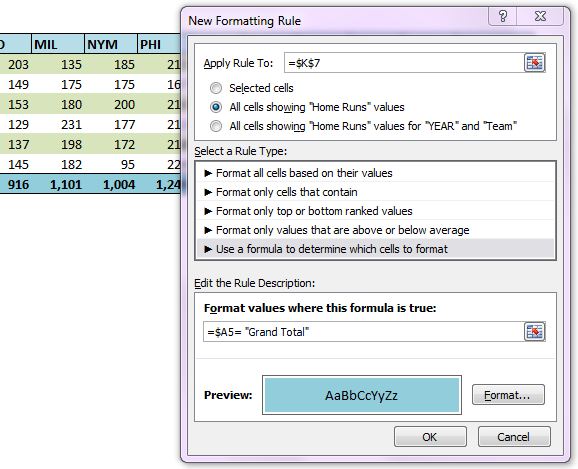
This works fairly well as long as your data area only includes one values field, but if you are pivoting on multiple values fields, you’ll have to add the rule for each one. And you can’t specify row fields in this dialog, so you’ll have define the formats again for those areas. And if you alter the formats you’ll have to do it all again.
For these reasons I’d rather just apply the conditional formatting to the row headings and the values area in one fell swoop. But I don’t want to visit the condtional formatting dialog to re-expand the range each time a pivot table is refreshed.
So, I wrote the code below to expand the condtional formatting from the first row label cell into all the row label and data area cells:
Dim pvtTable As Excel.PivotTable
Dim rngTarget As Excel.Range
Dim rngSource As Excel.Range
Dim i As Long
'check for inapplicable situations
If ActiveSheet Is Nothing Then
MsgBox ("No active worksheet.")
Exit Sub
End If
On Error Resume Next
Set pvtTable = ActiveSheet.PivotTables(ActiveCell.PivotTable.Name)
If Err.Number = 1004 Then
MsgBox "The cursor needs to be in a pivot table"
Exit Sub
End If
On Error GoTo 0
With pvtTable
'format conditions will be applied to row headers and values areas
Set rngTarget = Intersect(.DataBodyRange.EntireRow, .TableRange1)
'set the format condition's source to the first cell in the row area
Set rngSource = rngTarget.Cells(1)
With rngSource.FormatConditions
For i = 1 To .Count
'reset each format condition's range to row header and values areas
.Item(i).ModifyAppliesToRange rngTarget
Next i
End With
'display isn't always refreshed otherwise
Application.ScreenUpdating = True
End With
End Sub
The key to this code is the ModifyAppliesToRange method of each FormatCondtion. This code identifies the first cell of the row label range and loops through each format condition in that cell and re-applies it to the range formed by the intersection of the row label range and the values range, i.e., the banded area in the first image above.
This method relies on all the conditional formatting you want to re-apply being in that first row labels cell. In cases where the conditional formatting might not apply to the leftmost row label, I’ve still applied it to that column, but modified the condition to check which column it’s in.
This function can be modified and called from a SheetPivotTableUpdate event, so when users or code updates a pivot table it re-applies automatically. I’ve also added this macro to the Pivot Table Context Menu and some days it gets used a lot.
Pingback: Unified Method of Pivot Table Formatting - yoursumbuddy
Great tip! now the formatting stays when I refresh the pivot table.
This is exactly what I need but I can’t figure out where to put the code – I tried just pasting it into the code for the pivottable worksheet but the CF didn’t stay on refresh. Any help would be appreciated! Thanks!
NIki, you put it in either a SheetPivotTableUpdate event or Worksheet_Change event in a Worksheet module. There’s lots of info out there on how to do so: just search on “Excel VBA Worksheet_Change.” Here’s a good page on Excel event programming: http://www.cpearson.com/excel/Events.aspx.
If you still have questions, I recommend going to Stack Overflow or another forum, posting your code and a specific question, and you’re sure to get an answer.
This is such an awesome tips. Thank you very much. It works perfectly
Doug:
Thanks for the tip. I would like to only update the data portion of the pivot table. I tried to do rngtarget.select:=xlDataOnly but that didn’t work. Any ideas?
Thanks,
Sam
Sam,
The third picture in this post, and the associated text discuss one way. The other is to use the method discussed in this post and have your formula check which column it’s in.
Ok here’s my solution, it’s not the fastest but it’s simple to understand, and you can probably adapt it for what you need. This works where you only need 1 condition for the whole table. You could get fancy with the condition to make sure it only is active on certain rows if you like.
In this case anything that’s <0 gets turned red with white text.
'
' Macro2 Macro
'
'
Application.ScreenUpdating = False
Application.EnableEvents = False
Cells.FormatConditions.Delete
Cells.Select
Range("A1").Activate
Selection.FormatConditions.Add Type:=xlExpression, Formula1:="=A1<0"
Selection.FormatConditions(Selection.FormatConditions.Count).SetFirstPriority
With Selection.FormatConditions(1).Font
.ThemeColor = xlThemeColorDark1
.TintAndShade = 0
End With
With Selection.FormatConditions(1).Interior
.PatternColorIndex = xlAutomatic
.Color = 255
.TintAndShade = 0
End With
Selection.FormatConditions(1).StopIfTrue = False
Target.Select
Application.ScreenUpdating = True
Application.EnableEvents = True
End Sub